In the Character Controller Library (CCL), a core ControllerManager instance handles the physical simulation of the character and its interaction with the environment. This includes several intentional changes in movement/feel designed to resolve legacy Humanoid inconsistencies, as well as physical improvements like ground friction, linear acceleration curves, and realistic conservation of linear and angular momentum when jumping.
Enable CCL
The CCL is opt-in through Studio's Avatar Settings window. To enable it:
From the Avatar tab, open Avatar Settings.

Select the Movement tab on the left side of the window and, in the Abilities section, select Character Controller Library.

All of the standard abilities like Running, Jumping, and Climbing are enabled by default. To disable any of them at runtime, uncheck the associated box.


Structure
Under the core ControllerManager instance within the character model, individual controllers such as a GroundController and AirController define how movement is applied to the character. Abilities then interact with the ControllerManager and its descendants to modify controller behaviors or switch between controllers.

Configuration
While your game is running (or through a script that runs from ServerScriptService), you can experiment with the core ControllerManager and built‑in controllers.
Runtime
To experiment with controller configurations at runtime:
Begin a playtest.
In the Explorer, locate the character model in the Workspace and then expand the ControllerManager tree:
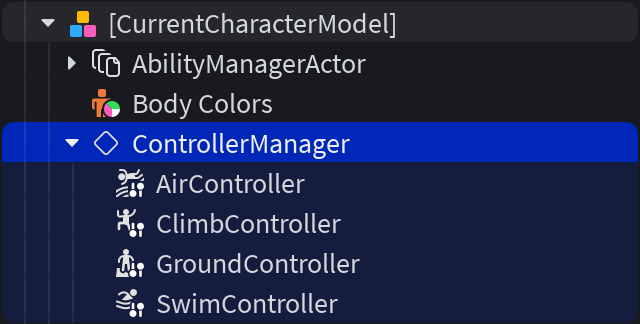
Select either the ControllerManager or one of its controller descendants and, in the Properties window, customize properties such as those summarized in the tables below (note that these tables are not exhaustive; please consult the API classes documentation for additional property options).
Property Description BaseMoveSpeed The base linear movement speed used by all controllers. Controllers individually customize movement speed through their MoveSpeedFactor property. BaseTurnSpeed The base angular turning speed used by all controllers to align the character to face the desired direction. Some controllers individually customize turn speed through their TurnSpeedFactor property. UpDirection Vector3 which indicates the upward-facing vector for the ControllerManager.RootPart.
Scripted
To set controller configurations for all characters through a script:
Create a new server-side Script within ServerScriptService and rename it to ControllerScript.
Copy and paste the following code into the new script. This example increases ground‑based moving/turning speed as well adds a slight acceleration and deceleration time. Feel free to adjust other properties such as those described in the tables above or for each class as documented (ControllerManager; GroundController; AirController; ClimbController; SwimController).
Script in ServerScriptServicelocal Players = game:GetService("Players")local function onCharacterAdded(character)local ControllerManager = character:FindFirstChildWhichIsA("ControllerManager")if ControllerManager thenlocal GroundController = ControllerManager:FindFirstChild("GroundController")if GroundController then-- Double the move and turn speedsGroundController.MoveSpeedFactor *= 2GroundController.TurnSpeedFactor *= 2-- Add slight acceleration and decelerationGroundController.AccelerationTime = 0.2GroundController.DecelerationTime = 0.4endendendlocal function onPlayerAdded(player)if player.Character thenonCharacterAdded(player.Character)endplayer.CharacterAdded:Connect(onCharacterAdded)endPlayers.PlayerAdded:Connect(onPlayerAdded)