Roblox Studio has a built-in script editor for editing the code in your Roblox project. The editor includes key features like linting, type checking, autocomplete and collaborative editing.
Many developers, however, have a preferred text editor or integrated development environment (IDE), such as Visual Studio Code, Cursor, Sublime Text, or Notepad++. Popular development environments often have features or plugins that don't exist in Studio. To use an external editor or IDE with Studio, enable the Script Sync feature.
Script Sync works by synchronizing the scripts in your data model to text files on your local disk. Changes made to the Luau files on disk are applied to the scripts in Studio, and vice versa. This synchronization means that you can edit a script in an external editor like VS Code and immediately see the change in Studio.
When to use Script Sync
If you want to use your preferred text editor or check code into version control, but use Studio for everything else, Script Sync is a good fit. It also works with Roblox's built-in collaboration tools, which third-party tools often do not.
Script Sync works well with existing Roblox projects, as it's an extra feature rather than a total shift in how you manage the project.
If you want to check your entire project (not just code) into version control or use your file system as the source of truth for your project, third-party tools like Rojo are a better choice.
Set up Script Sync
In the Explorer, select one or more folders that you want to sync.
Right-click and select Sync to….
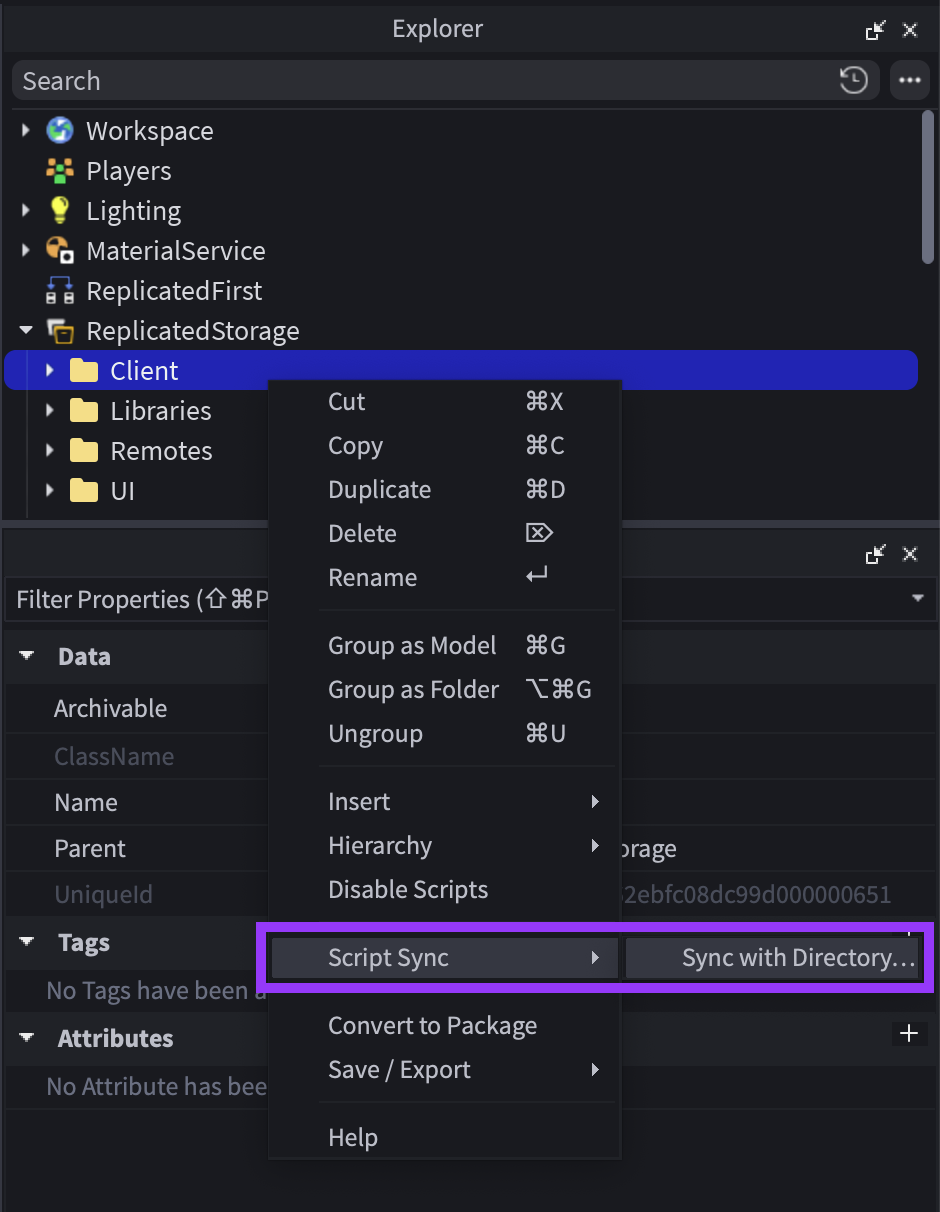
Choose a directory on your computer (or create a new one) and click Save.
In Studio, right-click on the folder again and select Script Sync ⟩ Reveal in Explorer (Windows) or Reveal in Finder (macOS).
Open the directory in your preferred text editor.
Alternatively, right-click an individual script in Studio and select Open in External Editor.

You can sync individual scripts, but we highly recommend syncing folders; if you sync a folder, Script Sync automatically syncs its child folders and scripts, which lets you create, delete, and rename scripts without having to enable syncing each time.
After you set up Script Sync, you almost certainly want to add an LSP extension to your text editor. For guidance around organizing your code, see Script types and locations
Limits
Script Sync supports up to 10,000 scripts per top-level synced instance and up to 128 top-level synced instances, so it scales to large code bases.
Conflict resolution
When starting or resuming sync, if there are differences between Studio and your files on disk, Script Sync shows a detailed resolution dialog. The dialog lists which scripts will be added, modified, or deleted on each side so you can understand the impact of choosing Keep Studio vs. Keep Disk.
Selective deletion
When you delete a synced script or folder in Studio or on disk, Script Sync removes only Luau scripts and supported files. It does not delete non-Luau files or folders that it doesn't manage; non-script assets like models and parts are preserved even when you remove or reorganize synced items around them.
Team Create
Script Sync works with Team Create. The Explorer displays an icon on instances that a collaborator is currently syncing. To prevent duplicate names, Script Sync automatically appends a numeric suffix to the name of any new instance added under a tree that you or a collaborator is syncing.
Avoid workflows where multiple people sync the same script and edit the files at the same time. Script Sync will continue to function, but collaborators can overwrite each other's changes.
Key tips
Script Sync only syncs Script, LocalScript, ModuleScript and Folder instances. All other instances in a synced folder are ignored. Avoid syncing folders that contain scripts alongside other instances.
You can sync packages, though the PackageLink itself is not written to disk.
Don't sync scripts that have attributes or tags. Script Sync ignores these, which can lead to data loss if you create or delete scripts or start syncing with an older version of your files on disk.
Script Sync requires the names of scripts be compatible with your file system—no duplicate names or unsupported characters. If Studio encounters any of these issues, it throws an error and asks you to resolve the situation before resuming sync.
If any synced files or folders change while Studio is closed, Studio asks you how you want to resolve the situation when you reopen the place.
Deleting a top-level (or "root") instance—the instance you initially synced—on your local disk can cause Studio to throw an error. To delete a top-level instance:
- In Studio, right-click the script or folder and select Script Sync ⟩ Stop Sync.
- Choose the Delete file(s) or Delete folder(s) option to delete the instance from your local disk.
- Delete the script or folder in Studio.
You can delete child instances in Studio or on your local disk without disabling syncing, and the deletion syncs as you'd expect.
Set up a language server
Language servers give your text editor language-specific features like autocomplete, type checking, "go to definition," and more. For VS Code, we recommend Luau Language Server.
Language server protocol (LSP) extensions need to understand the data model hierarchy of a project to work properly. The VS Code extension comes with a companion Studio plugin (Luau Language Server Companion) that provides this data.
We highly recommend installing both. If you use the VS Code extension and companion Studio plugin, language features will work correctly in VS Code while using Script Sync.
Recommended extensions
- Roblox Luau LSP and Luau Language Server Companion - Language features (see above)
- selene - Static code analysis (linting)
- StyLua - Automatic code formatting
Sync rules
When syncing an instance with children with a directory on disk, Studio will automatically sync create, rename, move, and delete operations on children with the corresponding files and folders on disk. This approach lets you maintain your code without having to manually stop and start syncing on individual scripts.
On disk, Script Sync uses the following rules to disambiguate the different types of scripts from each other.
| Naming convention on disk | Instance type in Studio |
|---|---|
| name.luau | ModuleScript |
| name.server.luau | Script with Server Script.RunContext |
| name.client.luau | Script with Client Script.RunContext |
| name.local.luau | LocalScript |
| name.legacy.luau | Script with Legacy Script.RunContext |
| name.plugin.luau | Script with Plugin Script.RunContext |
| name/ (directory) | Folder |
| name/init.*.luau | Script instance with children. Type (*) is determined by the above rules. |
Settings
Script Sync has several settings in the Studio Settings window (AltS or ⌥S). The default options are a good fit for most use cases.
| Setting | Description |
|---|---|
| Auto resume sync on place open | Whether Studio should resume syncing when you open a place. Disabling this setting dramatically reduces the utility of Script Sync. |
| Resume conflicted sync on place open | How Studio should handle conflicts when you open a place. The default option, Do not resume, forces you to resolve conflicts manually to avoid data loss. You can also choose to prefer the version on disk or the version in Studio. |
| Keep local files/directories after sync | How to handle files on disk after you select Script Sync > Stop Sync in Studio. |
| File extension | The file extension to use for scripts on disk. |