Creating games and Marketplace items using approved popular IP can make your content more recognizable to users and help you reach new audiences that already know and love certain characters, settings, and storylines.
As a creator, you can browse the Licenses catalog and request to use an available IP in your creations. A license allows you to create a Roblox game or Marketplace item using IP. Your licensed creations must follow the conditions and revenue share outlined by the rights holder.
Explore licenses
To explore available licenses in the Licenses catalog:
- In the Explore dropdown in the Creator Hub, click Licenses.
- Click an available IP license to see the details page for that specific license.
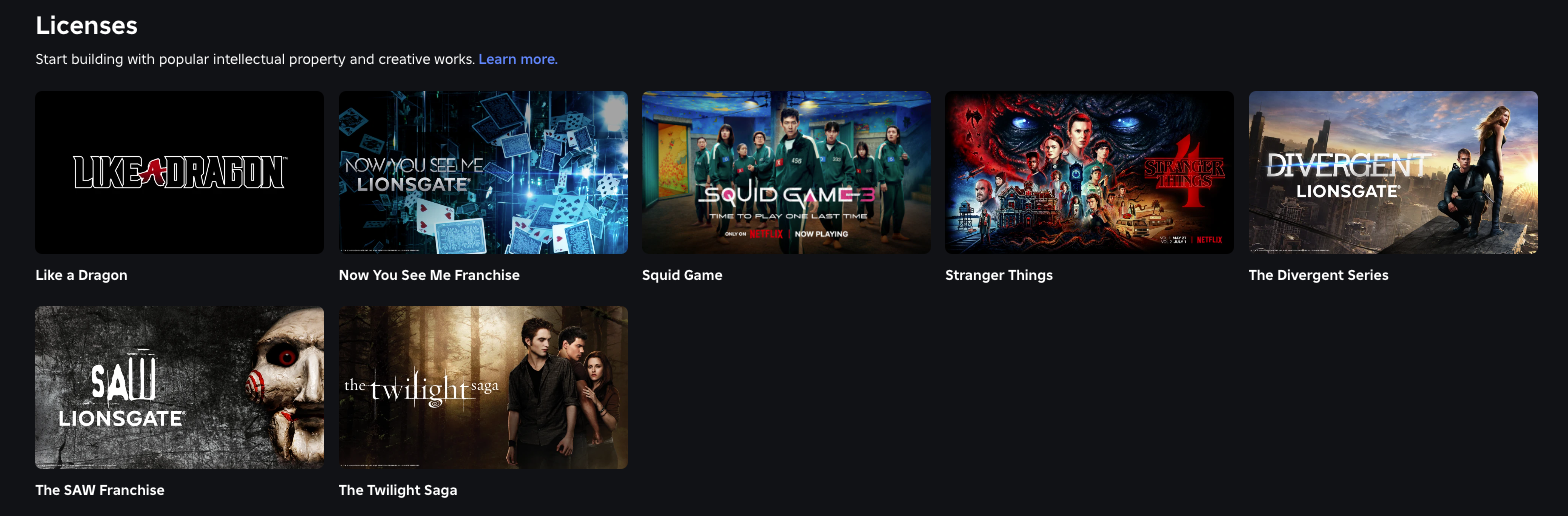
- Click View details to see more details about the license, like license requirements and content standards. If the rights holder has added showcase games, a carousel under About shows examples of games that already use that IP. Select a game to open its details page.

Request to use a license
Full game licenses
A full game license allows you to create an entire Roblox experience based on an IP. Before you apply, review the license's revenue share, duration, content standards, and brand guidelines.
To request a full game license:
- In the Explore dropdown in the Creator Hub, click Licenses.
- Select a Full game license from the available licenses.
- Click Send request.
- Select the game you want to use for this license request and click Next.
- Under Pitch, enter more details about your game. This can help the rights holder make a decision about your license request. For more information about writing a pitch, see Pitch details.
- (For perpetual licenses) Under Experience readiness, select one of the following:
- Yes, my experience is ready to use this intellectual property if you're done incorporating the IP into your game. Revenue share will start as soon as the license agreement becomes active.
- No, I need time to incorporate this intellectual property into my experience if you're not done incorporating the IP into your game. Revenue share won't start immediately, but the rights holder can still turn on monetization at any time.
- (For time-limited licenses) Under Proposed date range, use the calendar to set the proposed dates that your game will incorporate the IP. Start and end times for time-limited licenses are based on midnight UTC.
- Acknowledge licensing terms, review the guidelines and restrictions, and click Next.
- Click Submit to submit your license request. The rights holder then reviews your request and can approve it, reject it, or (for perpetual licenses) send a conditional approval that asks you to make changes before the agreement activates.
In-game sales licenses
An in-game sales license applies to a specific eligible experience and grants you permission to sell IP-based developer products and game passes within that experience. Before you apply, review the license's experience license requirements, revenue share, duration, content standards, and brand guidelines.
To request an in-game sales license:
- In the Explore dropdown in the Creator Hub, click Licenses.
- Select an In-game sales license from the available licenses.
- Click Send request.
- Select the game you want to use for this license request and click Next.
- Under Pitch, enter more details about your game. This can help the rights holder make a decision about your license request. For more information about writing a pitch, see Pitch details.
- Under Designate IP sales products, add the relevant developer product and game pass IDs.
- (For time-limited licenses) Under Proposed date range, use the calendar to set the proposed dates that your game will incorporate the IP. Start and end times for time-limited licenses are based on midnight UTC.
- Acknowledge licensing terms, review the guidelines and restrictions, and click Next.
- Click Submit to submit your license request. The rights holder then reviews your request and can approve it, reject it, or (for perpetual licenses) send a conditional approval that asks you to make changes before the agreement activates.
Marketplace licenses
A Marketplace license grants you permission to sell IP-based items to users on Marketplace including games that enable Marketplace sales. Each license applies to a specific creation, uses one revenue share rate, and determines whether you can enable Marketplace resale for IP-based items. Before you apply, review the license's experience license requirements, revenue share, duration, content standards, and brand guidelines.
To request a Marketplace license:
- In the Explore dropdown in the Creator Hub, click Licenses.
- Select a Marketplace license from the available licenses.
- Click Send request.
- Select license owner for which group or user you want to use for this license request and click Next.
- Under Pitch, enter more details about how you intend to use the IP. This can help the rights holder make a decision about your license request. For more information about writing a pitch, see Pitch details.
- (For time-limited licenses) Under Proposed date range, use the calendar to set the proposed dates that your game will incorporate the IP. Start and end times for time-limited licenses are based on midnight UTC.
- Acknowledge licensing terms, review the guidelines and restrictions, and click Next.
- Click Submit to submit your license request. The rights holder then reviews your request and can approve it, reject it, or (for perpetual licenses) send a conditional approval that asks you to make changes before the agreement activates.
Once the rights holder has accepted your offer, you will link this license to the IP-based items (and only those items) during publication. Sales of the IP-based items will continue to be subject to marketplace fees, before the revenue share with the rights holder.
To publish an item under an approved Marketplace license, select the applicable license from the license dropdown on the avatar item's configure page when you publish the item. The Sale Location and Revenue section then shows the IP Holder Share, based on the license's revenue share rate, alongside your expected earnings and other revenue splits. The revenue share also applies when the item is resold.
Keep the following in mind for Marketplace licenses:
- Supported item categories include body items, clothing, accessories, animations, and makeup.
- Each item can be associated with only one IP license at a time.
- Each license currently allows up to 100 separate items.
- You don't need a separate game license to sell licensed Marketplace items inside a game.
Pitch details
Including a well-written pitch with your request can make the rights holder more likely to approve your license request. Your pitch should convey a compelling idea and show that you are confident in your ability to execute this creative vision.
You can attach images to your pitch if they comply with Roblox's Community Standards. Image attachments are optional for full game license requests and required for in-game sales and Marketplace license requests.
We recommend that you include the following information in your pitch:
Overall vision:
- What makes your adaption of the IP unique and exciting for players.
- Your team's relevant experience, including examples of previous games you have developed, along with any previous work involving IP.
- How you believe the IP integration will engage players, expand the IP's reach, and create new opportunities for monetization and community growth.
Creative elements:
- How your creation's visual and audio design will reflect the IP, including character models, avatar item design, environments, UI, and soundscapes. For example, if you're requesting to integrate an IP like Pingu, you can highlight the use of stylized penguins and arctic scenes.
- How the story, lore, or signature moments from the IP will be integrated into your game. This could involve recreating iconic scenes, referencing key plot points, or introducing original storylines that fit within the universe of the IP.
- How you will maintain the integrity of the IP, making sure all creative choices align with the IP's established tone, themes, and content standards.
Gameplay:
- How the main gameplay loops will leverage the IP's unique features. For example, a survival horror IP could include mechanics like stealth, resource management, or cooperative puzzle-solving.
- How players will interact with the IP. You can describe progression systems, challenges, and rewards that are consistent with the theme of the IP.
- How your game genre aligns with the IP. For example, an IP like The Strangers might be more aligned with PvE escape games or social deduction horror, while an IP like Fall might be more aligned with high-stakes obbys or survival challenges.
Timeline:
- What the current state of your game is and when you expect the IP to be fully integrated into your game.
For more information about guidelines you must follow when writing your pitch, see Communication guidelines.
View license agreements
To view all of your offers and license agreements, go to Intellectual Property ⟩ Licenses. You can filter all license agreements by:
| Filter | Description |
|---|---|
| Offers | All license offers that rights holders have sent you, including conditional offers. |
| Requests | All license requests that you have sent to rights holders, including requests with a conditional approval waiting for your changes. |
| Active | All active license agreements between you and rights holders. |
| Archived | All archived offers or license agreements between you and rights holders, including expired or unsuccessful conditional offers. |
Review a license offer
For licenses with a perpetual duration, rights holders can reach out and make a license offer directly to your creation. This can happen if Roblox detects that your game has a high likelihood of making prominent use of a registered IP. Rights holders can send either a standard offer or a conditional offer.
Standard offers
After you receive a standard offer, you can:
- Do nothing and wait for the offer to be automatically accepted after 14 days.
Conditional offers
A conditional offer means the rights holder wants to license your creation, but you must update your creation to meet their content standards before the agreement can activate. Conditional offers do not auto-activate after 14 days. Conditional offers can only be sent from a match of your game.
After you receive a conditional offer or conditional approval, you have 14 days to:
- Make the requested changes and mark them as done.
- Dispute the offer, if the rights holder initiated the offer (dispute is not available when the rights holder conditionally approves a request that you submitted).
- Cancel the request, if you submitted the original license request.
If you don't respond within 14 days, the conditional offer or request expires and becomes unsuccessful. The rights holder might then pursue other options, such as filing an IP infringement claim.
Respond to a conditional offer
To review and complete a conditional offer or conditional approval:
- Go to Intellectual Property ⟩ Licenses.
- Open the conditional offer or request.
- Review the rights holder's feedback, which lists the content standard your creation is violating and the specific changes they want.
- Update your creation to address the requested changes.
- Mark the changes as done and confirm that you completed them. The rights holder then reviews your creation and either activates the agreement or rejects the changes.
Dispute the offer
To dispute a standard or conditional license offer that a rights holder sent to you:
- Go to Intellectual Property ⟩ Licenses ⟩ Offers.
- Select the license offer you want to dispute.
- Under Actions you can take, click dispute this license offer.
- In the dispute modal, select one of the following reasons for the dispute:
- My creation does not use this IP if you believe that the rights holder made the license offer by mistake.
- My use of this IP is "fair" or otherwise legally allowed if you believe that the IP is fair use.
- I modified my creation to remove the IP if you have fully removed the IP from your game.
- Click Next.
- Review and accept the legal agreements.
- Click Dispute. The rights holder can then accept or reject your offer dispute.
If the rights holder accepts your dispute, you will not enter into an agreement with them. However, if the rights holder rejects your dispute, you will receive their license offer again. For a standard offer, you can either wait 14 days for the offer to automatically become active or dispute it one final time. For a conditional offer, rejecting the dispute re-sends the conditional offer with the original feedback and starts a new 14-day window for you to make changes or dispute again.
If you submit a second and final dispute, you will not enter into an agreement with the rights holder. Instead, the offer will be archived, and the rights holder might choose to pursue an IP infringement claim separately.
Cancel a license
You can cancel a pending license request if the following conditions are met:
- The rights holder hasn't fully accepted your license request yet. You can still cancel after a rights holder sends a conditional approval, as long as the agreement has not become active.
- Early IP usage has not been detected in your creation.
- (For time-limited licenses only) The cancellation is made at least three days before the proposed start date.
If you cancel but still intend to use the IP, you must submit a new license request.
To cancel a license request:
- Navigate to Intellectual Property ⟩ Licenses.
- Select the license request you want to cancel.
- In the top-right, select the Cancel request button.
License expiration & termination
If a license expires or is terminated from a violation in the terms of the license, any associated licensed items are automatically removed from sale. In these cases, you are responsible for removing your use of the IP. If you fail to remove the IP, rights holders may choose to take action, including legal remedies. Users who already bought those licensed items can keep them unless an item is separately moderated.
Licensed creations can display a badge to users
Licensed creations can display a licensed badge inside the Roblox app. These badges are applied automatically for any creation under license. Rights holders may choose to remove this badge from any licensed creations at their discretion.
Transactions
When you enter an agreement with a rights holder, you agree to the revenue share rate they have set for their IP license. For example, if the revenue share rate of the IP license is set to 10% and one of the following items sells for 100 Robux inside your game:
| Game passes | ||
|---|---|---|
| 60% (in this case, 60 Robux) from the sale revenue goes to the item owner. | From the 60 Robux:
| |
| 10% (in this case, 10 Robux) from the sale revenue goes to affiliate fees. For example, if the pass is owned by User A but it's on sale inside User B's game, each under a different license. | From the 10 Robux:
| |
| 30% (in this case, 30 Robux) from the sale revenue goes to Roblox fees. | ||
| Subscriptions and developer products | ||
| 70% (in this case, 70 Robux) from the sale revenue goes to the item owner. | From the 70 Robux:
| |
| 30% (in this case, 30 Robux) from the sale revenue goes to Roblox fees. | ||
| Avatar items, avatar bundles, and items for resale | ||
| 30% (in this case, 30 Robux) from the sale revenue goes to the item owner. | From the 30 Robux:
| |
| 40% (in this case, 40 Robux) from the sale revenue goes to the seller, such as the game owner if the item is sold within a game. | ||
| 30% (in this case, 30 Robux) from the sale revenue goes to Roblox fees. | ||