The Animation Graph Editor is a visual, node-based tool that empowers technical artists and animators to build complex animation logic directly within Roblox Studio. By providing a streamlined interface for creating behaviors like blend trees, it removes the traditional dependency on manual scripting for character motion.
This system works in tandem with your existing animation workflow:
- Animation Editor: Continue using the Animation Editor as your primary tool for authoring individual clips and fine-tuning keyframes and curves.
- Animation Graph Editor: Use this new workspace to take those clips and organize them into a logic tree to drive sophisticated gameplay behavior.
Designed to enhance collaboration, the visual graph allows developers to quickly inspect, debug, and understand the logic created by animators. While artists focus on refining interactive motion, developers can still access animation graph nodes programmatically for direct control over blended animations and states.
Build a graph
To begin building logic for an animatable character, access the Animation Graph editor via the Avatar tab in the Studio ribbon. The following steps demonstrate how to initialize a rig and construct a basic node network using default walking and waving animations.
For a deeper dive into practical applications, you can explore the Animation Graph Reference File, which contains both foundational and complex implementation examples.
To create your own animation graph, similar to the basic example provided in the reference, use the following steps:
In Studio, add an animatable rig by navigating to the Avatar tab and selecting Character ⟩ My Avatar.

Open the Animation Graph Editor by navigating to Graph Editor in the Avatar tab.

Select the animatable rig in the 3D viewport and select Create Graph.
In the Graph Editor, right-click and select Clip.

In the new Clip node, set the Animation ID.
Select the Animation ID dropdown.
To submit a specific animation asset ID, click Import.

In the Animation ID field, add the default Walk animation: 507777826.
Select Import.
Add another clip node by repeating steps 4-5 using the default Wave animation: 507770239.

In the Graph Editor, right-click and select Add.
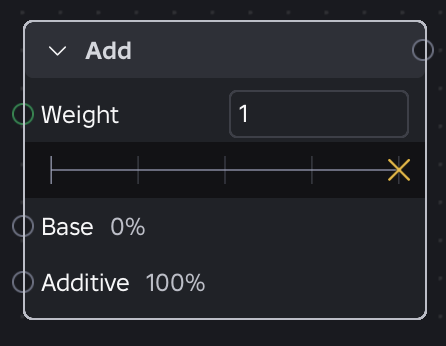
Connect the Clip nodes to the Add node by dragging the top-right output connector to the appropriate port:
- Connect the Clip node with the Walking animation to the Base port.
- Connect the Clip node with the Waving animation to the Additive port.
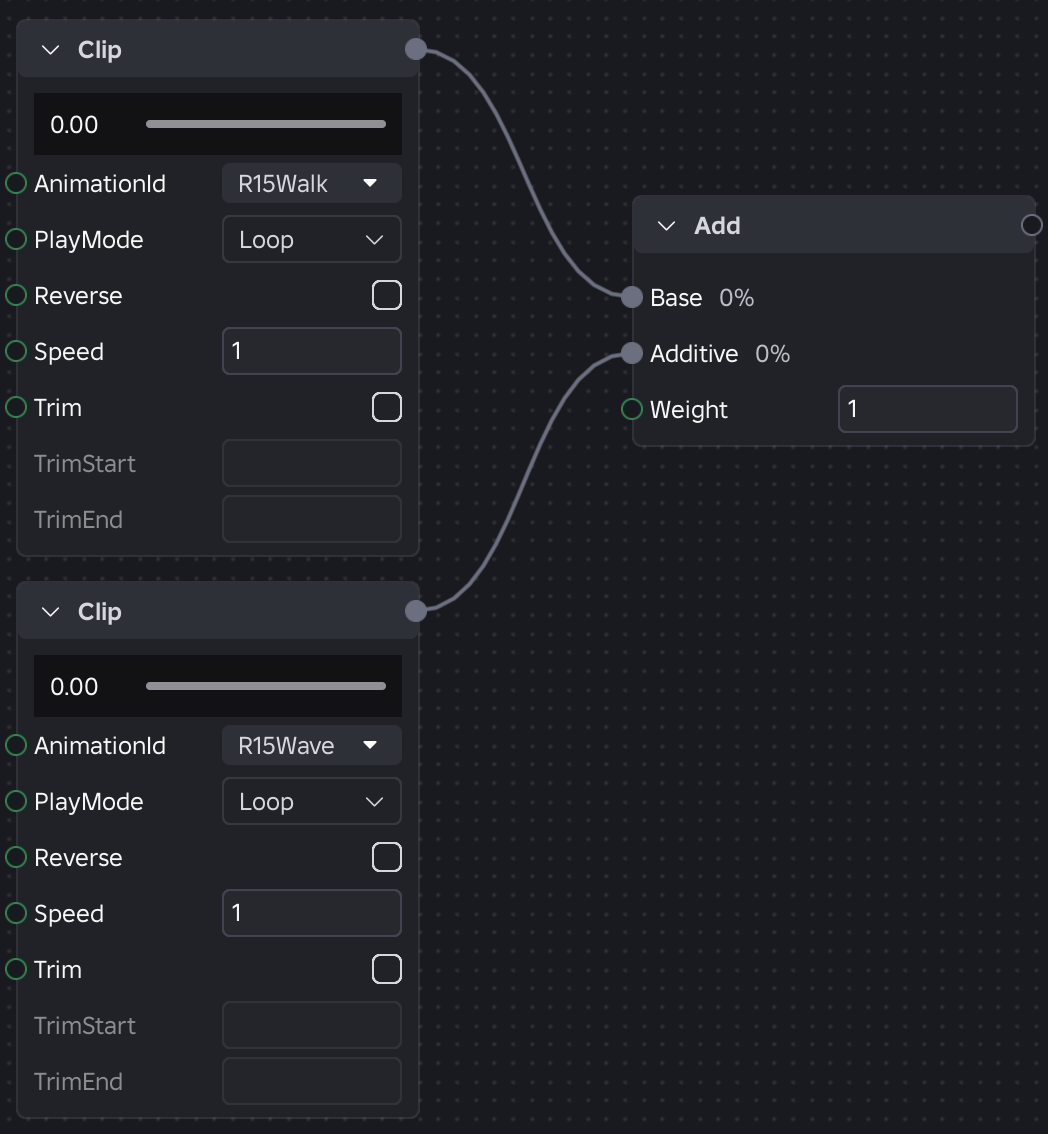
From the Add node, connect the top-right output connector to the Graph Output Pose port.

(Optional) Assign a parameter to your Speed variable.
Click and drag the green Speed port to an empty area. A new parameter node displays.

In the top left of the graph editor, use the parameter pane to quickly modify parameters in your nodes. You can also access this programmatically.

Test the animation by pressing the play button.

Try testing various weights, speeds, playmodes, and other animations. For more information on individual nodes, see the Node reference.
API integration
Creating and deploying an Animation Graph follows the standard Roblox animation pipeline. After selecting a rig in the Animation Graph Editor, a new AnimationGraphDefinition asset is created. This asset serves as the container for your nodes, connections, and parameters. Once your logic is finalized, you publish the graph to receive a standard Asset ID.
In your scripts, you interact with these graphs by loading them onto an Animator as you would a traditional animation. To drive the graph's internal logic, use AnimationTrack:SetParameter() to pass real-time values—such as movement speed or state booleans—directly into the graph's variables.
local animation = Instance.new("Animation")
animation.AnimationId = "rbxassetid://123456789" -- Your Published Graph ID
local animationTrack = animator:LoadAnimation(animation)
animationTrack:Play()
-- Dynamic parameter updates via RunService
game:GetService("RunService").Stepped:Connect(function(_, dt)
local currentSpeed = humanoidRootPart.AssemblyLinearVelocity.Magnitude
animationTrack:SetParameter("humanoidSpeed", currentSpeed)
end)
Node reference
Every animation graph node serves as a logic gate or data source that processes animation data before it reaches the character rig. This section provides a technical breakdown of the functional blocks within the Animation Graph Editor. All nodes currently output an animation pose.
Each node section includes:
- Definition – A summary of the node's purpose and role within the graph.
- Inputs – The data streams entering the node. Multiple inputs are represented as Input1, Input2, ..., InputN.
- Input properties – Settings tied directly to a specific input (an Idle input assigned to a Position of 0.5 on a Blend1D node).
- Event Data – Events emitted or consumed by the node to trigger internal graph logic or external Luau scripts. This behavior may change over the course of the beta development.
Global event rules
For all nodes and transitions, the following rules apply by default:
- Events propagate upward from their source node through the graph. Each event carries a weight representing its source's influence in the final blend. If the weight reaches zero at any point, the event is silenced.
- Nodes without custom event logic pass all events through unchanged; nodes that blend or select between inputs may scale the weight or block events from non-primary inputs (see per-node Event section).
- Marker events that reach the top of the graph can be observed via AnimationTrack:GetMarkerReachedSignal().
Clip

A reference to an AnimationClip asset. This serves as a leaf node in the graph, generating the raw animation data that feeds into other nodes for blending, selection, or modification.
- Inputs
- None
- Properties
Property Type Description Clip Asset ID The animation asset to play (e.g. rbxassetid://12345). PlayMode Enum.AnimationNodePlayMode Defines the behavior of the clip once it reaches the end of its duration.
- Loop (default): Automatically restarts from the beginning once the clip finishes.
- PingPong: Plays from start to end, then immediately plays in reverse from end to start.
- OnceAndHold: Plays once and maintains the final pose upon completion.
- OnceAndReset: Plays once and snaps back to the initial start pose upon completion.
Reverse Boolean Controls the direction of playback. Speed Number A multiplier for the playback rate. 0.0 pauses the graph, 1.0 is normal speed, and 2.0 is double speed. Trim Boolean Toggles whether the clip's duration should be truncated. TrimStart Number The absolute timestamp (in seconds) where playback should begin. TrimEnd Number The absolute timestamp (in seconds) where playback should terminate. - Event data
- Event Handling: None. This is a leaf node with no children.
- Event Emission: Reads custom markers embedded in the animation clip (e.g., "Footstep", "WeaponSwing") and emits them as named events at the precise frame they occur. If the clip is trimmed, only markers within the defined [TrimStart, TrimEnd] interval (inclusive) are emitted.
Select

Selects between any number of inputs via the Selection property. Whenever the current selection changes, it triggers a new transition.
- Inputs
- Input1...InputN
- Properties
Property Type Description Selection String The unique ID of the input to be selected, matching the name of the input connection (e.g., "Walk"). - Event data
- Event Handling: Events from the currently selected input pass through with their weight unchanged.
- Event Emission: Passes through all events from the currently selected input only. During a transition, event emission follows global event rules.
PrioritySelect

Evaluates a list of connected inputs from top to bottom and plays the first one whose condition evaluates to true. This allows for hierarchical animation selection based on specific logic. Whenever the current selection changes, it triggers a new transition.
- Inputs
- Input1...InputN
- Trigger (Boolean): A logical condition that must be true for this input to activate. In current versions, this is wired to a boolean parameter.
- Interruptible (Enum.AnimationNodeInterruptible): Defines the rule for when this active animation can be interrupted by a higher-priority input.
- Always (default): The input can be interrupted at any time by a higher-priority condition.
- Finished: The current animation must complete its playback before a higher-priority input can take over.
- Trigger: The input is only interruptible when the InterruptibleTrigger is set to true.
- InterruptibleTrigger (Boolean): Only available if Interruptible is set to Trigger. The input can be interrupted when this specific expression is true.
- Properties
Property Type Description DefaultInterruptible Enum.AnimationNodeInterruptible The baseline interruption rule applied to all inputs. Each input can override this with its own Interruptible input property. DefaultInterruptibleTrigger Boolean The baseline trigger value used when an input’s resolved Interruptible mode is Trigger. Each input can override this with its own InterruptibleTrigger input property. - Event data
- Event Handling: Events from the currently selected input pass through with their weight unchanged.
- Event Emission: Passes through all events from the currently selected input only. During a transition, event emission follows global event rules.
Sequence

Activates connected inputs in a specific sequential order based on defined wait conditions. Whenever the current selection changes, it triggers a new transition.
- Inputs
- Input1...InputN
- WaitFor (Enum.AnimationNodeWaitFor): Specifies the condition that must be met before the sequence advances to the next input.
- Finished (default): Advances to the next input when the current input completes a cycle. The advancement behavior depends on the connected input:
- Play-once clip: Advances when the clip finishes.
- Looping clip: Advances after one full loop completes.
- Sequence with infinite loops: Advances after one full cycle through all inputs.
- Sequence with infinite loops: Advances after all loops complete.
- Trigger: Activates the next input when a custom logical expression evaluates to true.
- WaitForTrigger (Boolean): Only available when WaitFor is set to Trigger.
- Properties
Property Type Description LoopCount Number The number of times to cycle through the entire sequence (default is 1). A value of 0 indicates an infinite loop. Once the count is reached, the node respects the looping or hold setting of the final input. DefaultWaitFor Enum.AnimationNodeWaitFor The baseline wait condition applied to all inputs. Each input can override this with its own WaitFor input property. - Event data
- Event Handling: Events from the currently active input pass through with their weight unchanged.
- Event Emission: Passes through all events from the currently active input in the sequence only. During a transition, event emission follows global event rules.
RandomSequence

Selects and plays one of its connected inputs at random. When the currently selected animation completes, the node randomly picks another input to play. Assign each input a specific weight to influence the probability of it being chosen. Whenever the current selection changes, it triggers a new transition.
- Inputs
- Input1...InputN
- Weight (Number): Determines the probability of this input being selected; higher weights increase the chance of selection.
- Properties
Property Type Description PlayCount Number The number of inputs the node will play through before stopping. Once reached, the node respects the looping or hold setting of the final input. Default is 0 for infinite Seed Number A value used to initialize the Random Number Generator (RNG), ensuring the sequence remains consistent across different clients. Defaults to -1 for random Seed. - Event data
- Event Handling: Events from the currently active input pass through with their weight unchanged.
- Event Emission: Passes through all events from the currently active input in the sequence only. During a transition, event emission follows global event rules.
Over

Layers the Over pose on top of the Base pose. When combined with a Mask node, masked-out joints in the Over pose reveal the Base pose entirely, creating a transparent overlay effect.
- Inputs
- Base: The background or bottom layer, typically a full-body animation like locomotion or an idle state.
- Over: The foreground or top layer to be applied over the base, such as a hand gesture or tool-use animation.
- Properties
Property Type Description Weight Number The blend weight used to attenuate the Over pose. Defaults to 1.0 (full override) and is unclamped. - Event data
- Event Handling:
- The node listens for events from both the Base and Over inputs.
- Event Emission:
- Base Events: All events from the Base input are passed through unmodified.
- Over Events: Events from the Over input are scaled by the Weight property.
- At Weight 0.5, Over events propagate at half weight
- At Weight 0, they are silenced.
Add

Adds the Additive pose to the Base pose, attenuated by a specific Weight (unclamped).
- Inputs
- Base: The primary animation pose.
- Additive: The pose to be layered onto the base.
- Properties
Property Type Description Weight Number Determines the strength of the additive pose applied to the base. - Event data
- Event Handling: The node listens for events from both the Base and Additive inputs.
- Event Emission: All events from both the Base and Additive inputs are passed through unmodified.
Subtract

Converts an animation into an additive pose by subtracting a relative base pose from the target pose (). The result is attenuated by a specific Weight (unclamped).
- Inputs
- A: The target animation pose.
- B: The relative base pose to be subtracted.
- Properties
Property Type Description Weight Number Determines the strength of the subtraction effect applied to the result. - Event data
- Event Handling: The node listens for events from both Input A and Input B.
- Event Emission: All events from both Input A and Input B are passed through unmodified.
Blend1D

Linearly interpolates between the two animation poses closest to the current input position on a single axis.
- Inputs
- Input1...InputN
- Position (Number): The specific coordinate for each subsequent input on the blend axis.
- Properties
Property Type Description Position Number The current active value on the blend axis used to sample the animations. If Position is outside the range of defined input positions, the node extrapolates using the two nearest inputs. PhaseSync Enum.AnimationNodePhaseSync Configures whether the timing of children inputs should be synchronized.
- Synced (default): Normalized synchronization. The node calculates a "virtual duration" based on the weighted average of active inputs. Each input node’s time step is adjusted so that all children converge to the same phase, keeping animations of different lengths in lockstep.
- Unsynced: Standard blending where clips advance independently at their own playback rates.
- Event data
- Event Handling: The node listens for events from all currently active child nodes.
- Event Emission: Only events from the highest-weight active input propagate, scaled by its blend weight. Events from the secondary input are silenced.
Blend2D

Blends multiple animation poses together based on two input parameters within a 2D coordinate space. This generalizes the Blend1D node to handle complex scenarios, such as blending based on both movement direction and speed simultaneously.
- Inputs
- Input1...InputN
- X (Number): The X-coordinate for each subsequent input.
- Y (Number): The Y-coordinate for each subsequent input.
- Properties
Property Type Description InputMode Enum.AnimationNodeBlend2DInputMode Defines the coordinate system used to evaluate the blendspace:
- Cartesian (default): Uses standard 2D grid coordinates. X and Y represent the current position within the blendspace.
- Polar: Uses angular and magnitude values. X represents the direction in radians, while Y represents the magnitude or strength of movement. Direction is weighted more heavily than magnitude, so inputs at similar angles but different magnitudes blend more smoothly than inputs at different angles.
X Number The current X-coordinate (Cartesian) or Direction in radians (Polar). Y Number The current Y-coordinate (Cartesian) or Magnitude (Polar). PhaseSync Enum.AnimationNodePhaseSync Configures whether the timing of children inputs should be synchronized.
- Synced (default): Normalized synchronization. The node calculates a "virtual duration" based on the weighted average of active inputs. Each input node’s time step is adjusted so that all children converge to the same phase, keeping animations of different lengths in lockstep.
- Unsynced: Standard blending where clips advance independently at their own playback rates.
- Event data
- Event Handling: The node listens for events from all currently active child nodes.
- Event Emission: Only events from the highest-weight active input propagate, scaled by its blend weight. Events from the secondary input are silenced.
Mask

Applies a predefined mask to the input Pose. A mask is defined by a weight per object (e.g. joint) in the rig hierarchy, allowing for precise control or "feathering" of the animation.
- Inputs
- Pose: The animation pose to be masked.
- Properties
Property Type Description Mask ObjectValue An ObjectValue (created as a direct child of the Mask AnimationNodeDefinition) that defines the mask weights. It can function in one of two ways:
- Directly: The ObjectValue itself contains attributes mapping rig object names to specific weight values.
- By Reference: The ObjectValue references another Instance that contains the mapping attributes. This allows for shared masks across different nodes in the graph.
When creating a mask, you can choose a rig schema (HumanoidRigDescription or Picker) to populate the hierarchy.
- HumanoidRigDescription: Standardizes the mask for humanoid characters.
- Picker: Allows the user to select any specific rig in the workspace to populate the mask hierarchy.
Invert Boolean When true, applies weight values as 1 - weight. This allows for reusing a mask inversely without creating a new asset. - Event data
- Event Handling: The node listens for all events from the input Pose.
- Event Emission: All events from the input Pose are passed through unmodified.
Speed

Modifies the playback rate of an incoming animation pose.
- Inputs
- Pose: The animation pose or subgraph whose playback speed will be modified.
- Properties
Property Type Description Speed Number A multiplier applied to the time delta (). 0.0 pauses the graph, 1.0 is normal speed, and 2.0 is double speed. - Event data
- Event Handling: The node listens for events from the input Pose.
- Event Emission: All events from the input Pose are passed through unmodified. Note that while the visual playback speed changes, the timing of emitted events (such as markers) will scale accordingly with the modified playback rate.
GraphOutput

Represents the final evaluated pose of the graph. This node is automatically included in all new graphs in the Animation Graph Editor. Its presence ensures that the graph is always valid and consistently produces an animation pose.
- Inputs
- Pose: The final processed animation data to be applied to the rig.
- Properties
- None
- Event data
- Event Handling: The node listens for all events passed through the final connected input.
- Event Emission: This node serves as the exit point for the animation pipeline and does not emit signals back into the graph.
Transitions
Several nodes in the Animation Graph (such as Select, Priority Select, Sequence, and Random Sequence) manage how animations blend when switching between active inputs. To prevent redundancy in the node reference, these behaviors are defined by standardized transition property groups.
Default transition

The baseline blending behavior applied to the node whenever it switches to a new active input.
- DefaultTransitionDuration (number): The time (in seconds) it takes to fully blend into the new pose.
- DefaultTransitionCurve (Enum.PoseEasingStyle): The easing function applied during the blend. Currently only supports Enum.PoseEasingStyle.Linear and Enum.PoseEasingStyle.CubicV2.
Transition override

Input-specific link properties that supersede the default transition. These are applied when the node transitions to that specific input.
- TransitionOverrideDuration (number): Overrides the default transition duration.
- TransitionOverrideCurve (Enum.PoseEasingStyle): Overrides the default transition curve. Currently only supports Enum.PoseEasingStyle.Linear and Enum.PoseEasingStyle.CubicV2
Replication
Animation graph parameters are local to each AnimationTrack and are not automatically replicated. This may change in future updates, but the currently recommended approach uses:
- Client → Server: A RemoteEvent to send parameters from the owning client to the server at a fixed tick rate.
- Server → Other Clients: Instance attributes which automatically replicate to all clients.
Player characters
A client script drives player characters. Since only the owning client knows the current gameplay state (movement input, humanoid state, etc.), parameters must flow from the owning client to the server and then to all other clients.
Setup
Under StarterCharacterScripts, create:
- A LocalScript for client-side animation and parameter driving.
- A Script for server-side replication.
- A RemoteEvent for client-to-server communication.
Client script
The owning client drives parameters from gameplay events and sends them to the server periodically. Other clients read replicated attributes from the server script instead.
local Players = game:GetService("Players")
local RunService = game:GetService("RunService")
local character = script.Parent
local humanoid = character:WaitForChild("Humanoid")
local animator = humanoid:FindFirstChildOfClass("Animator") or humanoid
-- Load the animation graph
local animation = Instance.new("Animation")
animation.AnimationId = "rbxassetid://YOUR_GRAPH_ID" -- Replace with your published graph ID
local track = animator:LoadAnimation(animation)
track:Play()
local isLocalCharacter = Players:GetPlayerFromCharacter(character) == Players.LocalPlayer
if not isLocalCharacter then
-- Read replicated parameters from the server script
local animateServer = script.Parent:WaitForChild("AnimateServer")
for attribute, value in animateServer:GetAttributes() do
track:SetParameter(attribute, value)
end
animateServer.AttributeChanged:Connect(function(attribute)
track:SetParameter(attribute, animateServer:GetAttribute(attribute))
end)
return
end
-- Local player: drive parameters from gameplay
local params = {}
local function setParam(key, value)
track:SetParameter(key, value)
params[key] = value
end
-- Example: drive parameters from humanoid state
humanoid.Running:Connect(function(speed)
setParam("Speed", speed)
setParam("State", if speed < 0.1 then "Idle" else "Moving")
end)
-- Send parameters to the server at a fixed tick rate
local replicateEvent = script.Parent:WaitForChild("ReplicateEvent")
local TICK_RATE = 1 / 20
local lastSendTime = 0
RunService.Stepped:Connect(function(gameTime)
if gameTime - lastSendTime > TICK_RATE then
lastSendTime = gameTime
replicateEvent:FireServer(params)
end
end)
Server script
Receives parameters from the owning client, drives the server-side animation graph, and propagates values as attributes for replication to other clients.
local Players = game:GetService("Players")
local character = script.Parent
local humanoid = character:WaitForChild("Humanoid")
local animator = humanoid:FindFirstChildOfClass("Animator") or humanoid
-- Load the same animation graph on the server
local animation = Instance.new("Animation")
animation.AnimationId = "rbxassetid://YOUR_GRAPH_ID" -- Same graph ID as client
animation.Parent = script
local track = animator:LoadAnimation(animation)
track:Play()
-- Receive parameters from owning client and replicate via attributes
local replicateEvent = script.Parent:WaitForChild("ReplicateEvent")
replicateEvent.OnServerEvent:Connect(function(player, params)
if Players:GetPlayerFromCharacter(character) ~= player then
return
end
for key, value in params do
track:SetParameter(key, value)
script:SetAttribute(key, value)
end
end)
NPCs
Since the server owns NPC animation, only server-to-client replication is needed. Drive the animation graph on the server, write parameters as attributes on a server Script, and read them on clients using the same Instance.AttributeChanged pattern shown above.
Latency
Other clients see animations with a small delay equal to the tick interval (up to 50 ms at 20 Hz) plus network latency. You can reduce the tick interval by increasing the frequency (such as 1/30), at the cost of higher network traffic. 20 Hz is a reasonable default; animation blending is forgiving enough that small delays are hard to notice.