在动画中,补间是生成序列中两个关键点之间的中间帧的过程。在设计用户界面时,您可以使用补间将 GuiObject 从一个状态平滑过渡到另一个状态,例如:
- 当用户选择按钮时,平滑地增加按钮的大小。
- 从屏幕边缘滑入和滑出 UI 菜单。
- 当用户获得生命值提升时,逐渐在两个宽度之间动画化生命值条。
单属性补间
位置
要对 GuiObject 的 位置 进行补间:
- 设置对象的 AnchorPoint。
- 将 TweenInfo 和目标位置传递给 TweenService:Create()。
- 使用 Tween:Play() 播放补间。
以下代码片段将 ImageLabel 移动到 ScreenGui 的屏幕中心:
local TweenService = game:GetService("TweenService")
local Players = game:GetService("Players")

local PlayerGui = Players.LocalPlayer:WaitForChild("PlayerGui")
local ScreenGui = PlayerGui:WaitForChild("ScreenGui")
local object = ScreenGui:WaitForChild("ImageLabel")

object.AnchorPoint = Vector2.new(0.5, 0.5)

local targetPosition = UDim2.new(0.5, 0, 0.5, 0)

local tweenInfo = TweenInfo.new(2)
local tween = TweenService:Create(object, tweenInfo, {Position = targetPosition})

tween:Play()
大小
要对 GuiObject 的 大小 进行补间:
- 将 UIAspectRatioConstraint 附加到对象,以在补间时保持其设计的宽高比。
- 将 TweenInfo 和目标大小传递给 TweenService:Create()。
- 使用 Tween:Play() 播放补间。
以下代码片段将 ImageLabel 在 ScreenGui 中缩放到屏幕宽度或高度的 40%(以较小者为准),从对象的中心锚点开始:
local TweenService = game:GetService("TweenService")
local Players = game:GetService("Players")

local PlayerGui = Players.LocalPlayer:WaitForChild("PlayerGui")
local ScreenGui = PlayerGui:WaitForChild("ScreenGui")
local object = ScreenGui:WaitForChild("ImageLabel")

object.AnchorPoint = Vector2.new(0.5, 0.5)

local aspectRatioConstraint = Instance.new("UIAspectRatioConstraint")
aspectRatioConstraint.Parent = object

local targetSize = UDim2.new(0.4, 0, 0.4, 0)

local tweenInfo = TweenInfo.new(2)
local tween = TweenService:Create(object, tweenInfo, {Size = targetSize})

tween:Play()
旋转
要对 GuiObject 的 旋转 进行补间:
- 设置对象的 AnchorPoint 以便围绕其旋转。
- 确定对象的目标 Rotation。
- 将 TweenInfo 和目标旋转传递给 TweenService:Create()。
- 使用 Tween:Play() 播放补间。
local TweenService = game:GetService("TweenService")
local Players = game:GetService("Players")

local PlayerGui = Players.LocalPlayer:WaitForChild("PlayerGui")
local ScreenGui = PlayerGui:WaitForChild("ScreenGui")
local object = ScreenGui:WaitForChild("ImageLabel")

object.AnchorPoint = Vector2.new(0.5, 0.5)

local targetRotation = 45

local tweenInfo = TweenInfo.new(2)
local tween = TweenService:Create(object, tweenInfo, {Rotation = targetRotation})

tween:Play()
透明度
多个属性控制 UI 透明度,具体取决于对象类型。您可以单独或通过 多属性补间 组合补间这些属性。或者,您可以通过将对象放入 CanvasGroup 中并补间该组的 GroupTransparency 来补间对象的整体透明度。
local TweenService = game:GetService("TweenService")
local Players = game:GetService("Players")

local PlayerGui = Players.LocalPlayer:WaitForChild("PlayerGui")
local ScreenGui = PlayerGui:WaitForChild("ScreenGui")
local object = ScreenGui:WaitForChild("ImageLabel")

local targetTransparency = 0.8

local tweenInfo = TweenInfo.new(2)
local tween = TweenService:Create(object, tweenInfo, {ImageTransparency = targetTransparency})

tween:Play()local TweenService = game:GetService("TweenService")
local Players = game:GetService("Players")
local PlayerGui = Players.LocalPlayer:WaitForChild("PlayerGui")
local ScreenGui = PlayerGui:WaitForChild("ScreenGui")
local canvasGroup = ScreenGui:WaitForChild("CanvasGroup")
local targetTransparency = 0.8
local tweenInfo = TweenInfo.new(2)
local tween = TweenService:Create(canvasGroup, tweenInfo, {GroupTransparency = targetTransparency})
tween:Play()颜色
多个属性控制 UI 颜色,具体取决于对象类型。您可以单独或通过 多属性补间 组合补间这些属性。或者,您可以通过将对象放入 CanvasGroup 中并补间该组的 GroupColor3 来补间对象的整体颜色。
local TweenService = game:GetService("TweenService")
local Players = game:GetService("Players")

local PlayerGui = Players.LocalPlayer:WaitForChild("PlayerGui")
local ScreenGui = PlayerGui:WaitForChild("ScreenGui")
local object = ScreenGui:WaitForChild("ImageLabel")

local targetColor = Color3.fromRGB(255, 0, 0)

local tweenInfo = TweenInfo.new(2)
local tween = TweenService:Create(object, tweenInfo, {ImageColor3 = targetColor})

tween:Play()local TweenService = game:GetService("TweenService")
local Players = game:GetService("Players")
local PlayerGui = Players.LocalPlayer:WaitForChild("PlayerGui")
local ScreenGui = PlayerGui:WaitForChild("ScreenGui")
local canvasGroup = ScreenGui:WaitForChild("CanvasGroup")
local targetColor = Color3.fromRGB(255, 0, 0)
local tweenInfo = TweenInfo.new(2)
local tween = TweenService:Create(canvasGroup, tweenInfo, {GroupColor3 = targetColor})
tween:Play()描边
多个属性控制 UI 边框,具体取决于对象类型。
或者,您可以应用一个 UIStroke 子对象并补间其厚度、颜色和/或透明度。
| UI 对象 | 属性 |
|---|---|
| UIStroke | Color, Thickness, Transparency |
local TweenService = game:GetService("TweenService")
local Players = game:GetService("Players")

local PlayerGui = Players.LocalPlayer:WaitForChild("PlayerGui")
local ScreenGui = PlayerGui:WaitForChild("ScreenGui")
local object = ScreenGui:WaitForChild("TextLabel")

local stroke = Instance.new("UIStroke")
stroke.Color = Color3.fromRGB(255, 255, 255)
stroke.Thickness = 5
stroke.Parent = object

local targetColor = Color3.fromRGB(255, 0, 0)
local targetThickness = 10

local tweenInfo = TweenInfo.new(2)
local tween = TweenService:Create(stroke, tweenInfo, {Color = targetColor, Thickness = targetThickness})

tween:Play()
多属性补间
您可以通过将多个目标属性传递给 TweenService:Create() 将任何 单属性补间 组合成更复杂的补间,例如 位置 + 旋转 或 大小 + 透明度。
local TweenService = game:GetService("TweenService")
local Players = game:GetService("Players")

local PlayerGui = Players.LocalPlayer:WaitForChild("PlayerGui")
local ScreenGui = PlayerGui:WaitForChild("ScreenGui")
local object = ScreenGui:WaitForChild("ImageLabel")

object.AnchorPoint = Vector2.new(0.5, 0.5)

local targetPosition = UDim2.new(0.5, 0, 0.5, 0)
local targetRotation = 45

local tweenInfo = TweenInfo.new(2)
local tween = TweenService:Create(object, tweenInfo, {Position = targetPosition, Rotation = targetRotation})

tween:Play()local TweenService = game:GetService("TweenService")
local Players = game:GetService("Players")
local PlayerGui = Players.LocalPlayer:WaitForChild("PlayerGui")
local ScreenGui = PlayerGui:WaitForChild("ScreenGui")
local object = ScreenGui:WaitForChild("ImageLabel")
object.AnchorPoint = Vector2.new(0.5, 0.5)
local aspectRatioConstraint = Instance.new("UIAspectRatioConstraint")
aspectRatioConstraint.Parent = object
local targetSize = UDim2.new(0.4, 0, 0.4, 0)
local targetTransparency = 0.8
local tweenInfo = TweenInfo.new(2)
local tween = TweenService:Create(object, tweenInfo, {Size = targetSize, ImageTransparency = targetTransparency})
tween:Play()补间序列
您可以通过在前一个补间的 Completed 事件上播放后续补间来链接 UI 动画,使其一个接一个地发生。例如,以下脚本将对象移动到屏幕中心,然后将其旋转 45°。
local TweenService = game:GetService("TweenService")
local Players = game:GetService("Players")

local PlayerGui = Players.LocalPlayer:WaitForChild("PlayerGui")
local ScreenGui = PlayerGui:WaitForChild("ScreenGui")
local object = ScreenGui:WaitForChild("ImageLabel")

object.AnchorPoint = Vector2.new(0.5, 0.5)

local targetPosition = UDim2.new(0.5, 0, 0.5, 0)
local targetRotation = 45

local tweenInfo = TweenInfo.new(2)
local positionTween = TweenService:Create(object, tweenInfo, {Position = targetPosition})
local rotationTween = TweenService:Create(object, tweenInfo, {Rotation = targetRotation})

-- 首先播放位置补间
positionTween:Play()

-- 在位置补间完成后播放旋转补间
positionTween.Completed:Connect(function()
	rotationTween:Play()
end)
样式过渡
UI 对象也可以通过 样式过渡 动画化,类似于 CSS 过渡,其中一个或多个 UI 属性通过 StyleRule 定义进行补间。有关详细信息,请参阅 样式编辑器 指南。

缓动选项
使用 TweenInfo 的缓动选项,您可以控制 UI 动画的缓动 样式 和 方向。
样式
Enum.EasingStyle 设置从开始到结束的插值速率。默认情况下,缓动样式设置为 Enum.EasingStyle.Quad。
| 样式 | 描述 |
|---|---|
| 线性 | 以恒定速度移动。 |
| 正弦 | 速度由正弦波决定,产生温和的缓动效果。 |
| 二次 | 类似于 正弦,但基于二次插值的曲线稍微陡峭。 |
| 三次 | 类似于 二次,但基于三次插值的曲线稍微陡峭。 |
| 四次 | 类似于 三次,但基于四次插值的曲线更加陡峭。 |
| 五次 | 类似于 四次,但基于五次插值的曲线更加陡峭。 |
| 指数 | 基于指数插值的最陡曲线。 |
| 圆形 | 遵循圆弧,使加速更突然,减速更平缓,相比于 五次 或 指数。 |
| 回弹 | 稍微超出目标,然后回退到原位。 |
| 弹跳 | 在达到目标后向后弹跳多次,然后最终稳定下来。 |
| 弹性 | 移动时像是附着在橡皮筋上,超出目标多次。 |

local tweenInfo = TweenInfo.new(2, Enum.EasingStyle.Cubic)
local tween = TweenService:Create(object, tweenInfo, {Rotation = 45})
方向
Enum.EasingDirection 定义 缓动样式 插值如何应用于对象,默认值为 Out。请注意,具有 线性 缓动样式的补间不受影响,因为线性插值从开始到结束是恒定的。
| 方向 | 描述 |
|---|---|
| In | 缓动样式向前应用。 |
| Out | 缓动样式向后应用。 |
| InOut | 缓动样式在前半段向前应用,在后半段向后应用。 |
local tweenInfo = TweenInfo.new(2, Enum.EasingStyle.Cubic, Enum.EasingDirection.InOut)
local tween = TweenService:Create(object, tweenInfo, {Rotation = 45})
打字机效果
您可以轻松增强基于文本的 UI,例如过场动画横幅、玩家指令和提示,添加动画效果。 "打字机" 效果非常适合 TextLabels,用于讲述故事、输出 NPC 对话等。
在 ReplicatedStorage 中创建一个新的 ModuleScript。
将新脚本重命名为 AnimateUI。
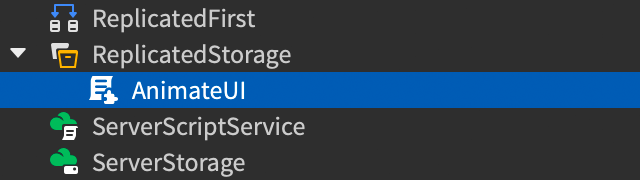
将以下代码粘贴到脚本中:
ModuleScript - AnimateUIlocal LocalizationService = game:GetService("LocalizationService")local Players = game:GetService("Players")local SOURCE_LOCALE = "en"local translator = nillocal AnimateUI = {}function AnimateUI.loadTranslator()pcall(function()translator = LocalizationService:GetTranslatorForPlayerAsync(Players.LocalPlayer)end)if not translator thenpcall(function()translator = LocalizationService:GetTranslatorForLocaleAsync(SOURCE_LOCALE)end)endendfunction AnimateUI.typeWrite(guiObject, text, delayBetweenChars)guiObject.Visible = trueguiObject.AutoLocalize = falselocal displayText = text-- 如果可能,翻译文本if translator thendisplayText = translator:Translate(guiObject, text)end-- 替换换行标签,以便字符循环不会错过这些字符displayText = displayText:gsub("<br%s*/>", "\n")-- 移除 RichText 标签,因为逐字符动画会破坏标签displayText = displayText:gsub("<[^<>]->", "")-- 在父对象上设置翻译/修改后的文本guiObject.Text = displayTextlocal index = 0for first, last in utf8.graphemes(displayText) doindex += 1guiObject.MaxVisibleGraphemes = indextask.wait(delayBetweenChars)endendreturn AnimateUI在合适的位置创建一个 TextLabel,例如在 StarterGui 下的 ScreenGui 中。
插入一个新的 LocalScript 作为标签的直接子对象,并粘贴以下代码。请注意,每条消息都是通过调用 AnimateUI.typeWrite() 输出的,参数为父对象、要输出的字符串和字符之间的延迟。
LocalScriptlocal ReplicatedStorage = game:GetService("ReplicatedStorage")local AnimateUI = require(ReplicatedStorage:WaitForChild("AnimateUI"))local label = script.Parent-- 如果游戏已本地化,则加载翻译器--AnimateUI.loadTranslator()local message1 = [[这扇门后是<br /><font size="46" color="rgb(255,50,25)">伟大的佐戈斯...</font> <font size="40">🗡</font>]]AnimateUI.typeWrite(label, message1, 0.05)task.wait(1)local message2 = [[...谁在这个地牢中 <font color="rgb(255,200,50)">无人挑战地统治着!</font> <font size="30">😈</font>]]AnimateUI.typeWrite(label, message2, 0.05)
